
Guide
How to Post a Banner on TikTok
A banner only works if the three photos go up in the right order. Haven't cut your image yet? Use the TikTok banner maker & splitter or split your banner first, then follow these steps.
Why you post right to left
TikTok puts your newest post at the top left of your profile grid and pushes older ones to the right. So the tile you post first ends up on the right, and the tile you post last ends up on the left.
That is why BannerSplitter names the files tiktok-banner-1.png, tiktok-banner-2.png and tiktok-banner-3.png, with 1 being the right tile. Upload them in number order and the picture reads left to right.
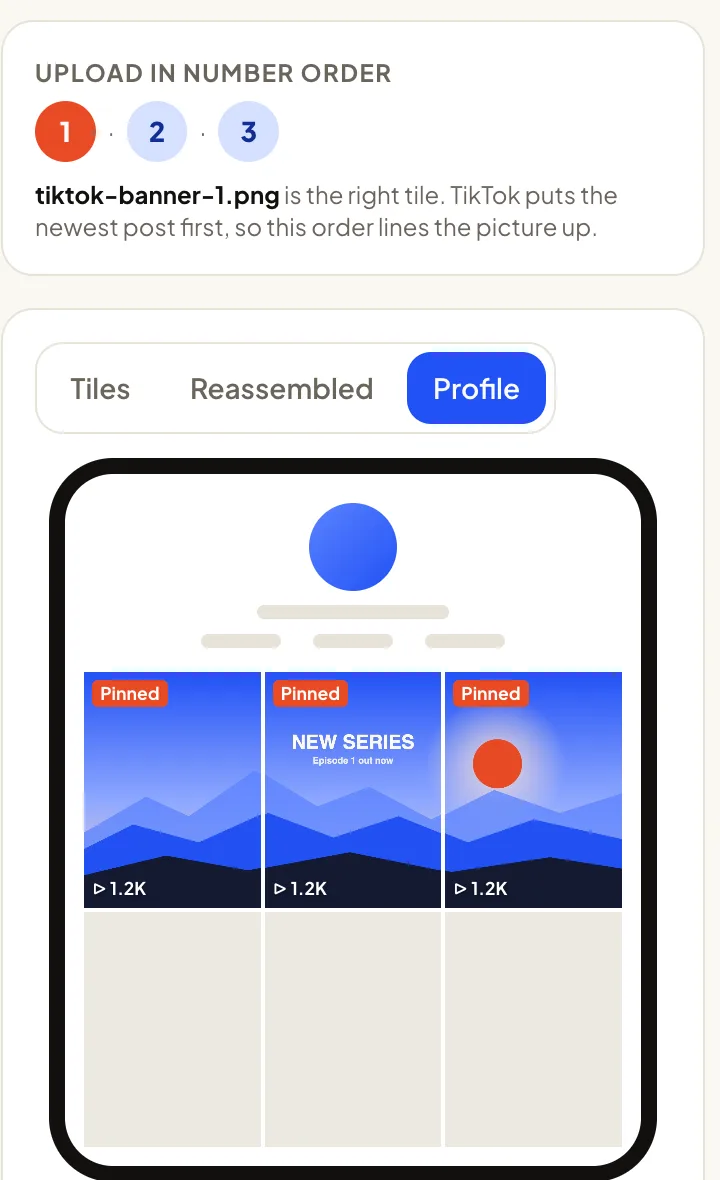
Post the three tiles
Use photo posts, one tile per post. Post them back to back so nothing else lands in between.
1. Post tiktok-banner-1.png
Create a photo post with only this image. Add a caption if you like — it does not affect the banner.
2. Post tiktok-banner-2.png
It appears to the left of the first tile.
3. Post tiktok-banner-3.png
It takes the top-left spot. Your banner is now complete in the top row.
4. Open your profile and check
Look at the top row. If the picture is mirrored, the tiles went up in the wrong order — delete and repost them.
Pin the banner so it stays on top
Every new post pushes your banner one place to the right. Pinning keeps it at the top. TikTok lets you pin up to three posts, which is exactly one banner row.
Pin the tiles in the same order you posted them: 01 first, then 02, then 03. The most recently pinned post shows first, so the last tile you pin, the left one, takes the top-left spot. Open each post, tap the ⋯ or share menu and choose Pin.
Choosing the cover
For a photo post, the grid shows the first photo of the post. Post each tile on its own, so that tile is the cover. If you add more photos to the same post, keep the tile first.
If you use videos instead, pick the cover in the upload screen and choose the tile as the cover image. Video covers are 9:16; the grid shows the middle 3:4, so the Full-screen option keeps the banner inside that window.
Banner or carousel: how to post a TikTok carousel
A TikTok carousel is one photo post with several images that viewers swipe through. A banner is three separate posts that sit side by side in your profile grid. They look similar while you upload, so it is easy to post a banner as a carousel by mistake — and then only one tile shows on your profile.
To post a TikTok carousel, tap +, choose Photo, select up to the photo limit your app allows in the order you want them to appear, add a caption and post. The first photo becomes the cover in your grid. You can turn a split banner into a carousel too: upload the tiles in order 3, 2, 1 so the swipe reads left to right.
For a banner across your profile, always post the tiles one by one, tiktok-banner-1.png first. Use a carousel when you want people to swipe through the full picture inside one post — for example as a teaser that points to your new banner.
Banners on the Reposts tab
Some creators build a banner on the Reposts tab instead. It follows the same rule: the newest repost appears first. Repost the right tile first and the left tile last, and do not repost anything else in between.
Review and visibility issues
A post is still under review
New posts can take a few minutes to appear. Wait until all three are visible before you pin, or the order can shift.
One tile is not shown
If a post is restricted or set to private, the gap breaks the banner. Check each post's privacy setting is Everyone.
Text or logos flagged
Banners follow the same Community Guidelines as any post. Avoid other brands' logos and misleading claims.
Photo mode not available
If you can't post photos, update the app; you can also post each tile as a short video with the tile as its cover.
Common ordering mistakes
Starting with the left tile
The most common mistake. It gives a mirrored banner. Always post the right tile first.
Pinning in a different order
Pinned posts are shown newest-pinned first. Pin 01, 02, 03 in that order.
Posting something in between
Another post between tiles splits the banner. Post all three in one go.
Uploading as a carousel
A carousel is one post. The banner needs three separate posts.
How to check that it lines up
Open your profile in the app and look at the top row. The seams should meet without a jump. If something is cut by the view count or the Pinned label, go back to the TikTok banner size guide, move it inside the safe zone and export again.
Tip: before posting publicly, post the tiles from a private or test account to see them in place. Keep the ZIP until the banner is live.
FAQ
Which photo do I post first?
tiktok-banner-1.png, the right tile. TikTok shows the newest post first, so the first one ends up on the right.
Can I post the banner as one carousel?
No. A carousel is a single post that shows one cover in the grid. A banner needs three separate posts.
How do I keep the banner at the top?
Pin the three posts in number order. TikTok lets you pin three posts, exactly one banner row.
My banner came out mirrored. What now?
The tiles went up left first. Delete them and post again starting with tiktok-banner-1.png.
How do I post a TikTok carousel instead?
Tap +, choose Photo and select several images in the order you want them swiped. To show a split banner as a carousel, select the tiles from left to right: tiktok-banner-3, 2, then 1.
How to post TikTok carousel photos in the right order?
Select the photos in the order you want viewers to swipe them. For a split banner shown as a carousel, that means the left tile first: tiktok-banner-3, then 2, then 1.
Can I edit the order after posting?
No. TikTok does not let you reorder posts in the grid or photos inside a carousel after publishing. Delete the post and upload it again in the right order.